1/12/2020

How to use CGDI MB EIS ELV Test Platform?

The CGDI MB EIS ELV Testing Platform Instrument Emulator is used to work with CGDI Prog MB to test EIS without ELV, emulate elv function, read write and collect EIS data.

Function List:
  • Supports EIS testing without ELV
  • Supports emulating  ELV function (except for 204, 217, 212 old)
  • Supports different Benz Programming Device
  • Supports CAN line EIS Monitor
  • Supports EIS reading,writing, data Collection

EIS Supporting Models:
204         207
212old      212new
166         246
209        211       169
203        463
639K line     639CAN line
202        208       210
215        220       230
216old     216new
221old     221new
164old     164new

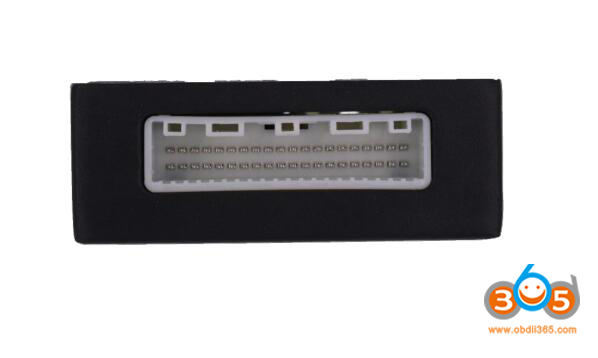
The test platform comes with emulator unit, a OBD Adapter Cable and EIS Adapter Cable
cgdi-mb-elv-eis-test-platform-1

Interface Description
EIS to interface
cgdi-mb-elv-eis-test-platform-2

EIS status display area
cgdi-mb-elv-eis-test-platform-3

ELV function selection, 12V power interface, OBD to interface
cgdi-mb-elv-eis-test-platform-4

ELV status display
Key inserted
cgdi-mb-elv-eis-test-platform-5

Key is open ACC
cgdi-mb-elv-eis-test-platform-6

Vehicle start
cgdi-mb-elv-eis-test-platform-7

Key is pulled out
cgdi-mb-elv-eis-test-platform-8

CGDI MB EIS ELV Test Platform Physical connection
cgdi-mb-elv-eis-test-platform-connection-1

cgdi-mb-elv-eis-test-platform-connection-2

cgdi-mb-elv-eis-test-platform-connection-3

cgdi-mb-elv-eis-test-platform-connection-4


CGDI MB Benz EIS ELV Testing Platform User Manual.pdf

Operation video demo:
Program Benz W210 All Keys Lost (Fast Mode) with CGDI MB and EIS ELV Emulator

www.obdii365.com

12/27/2019

CGDI BMW Read and Change BMW E90 CAS ISN

How to downgrade BMW CAS3 E90, read ISN from DME and change ISN CAS using CGDI Prog BMW key programmer.
Keep stable power supply.
 
Step 1: Downgrade CAS3
cgdi-bmw-e90-isn-1
Select CAS1-3+ Key Match
cgdi-bmw-e90-isn-2
Read Key Info.
CGDI BMW require to downgrade current CAS versions.
Press Yes to downgrade CAS3.
cgdi-bmw-e90-isn-3

cgdi-bmw-e90-isn-4

cgdi-bmw-e90-isn-5

cgdi-bmw-e90-isn-6
Downgrade in process. Wait until it reads key information.
cgdi-bmw-e90-isn-7
Save backup EEPROM bin file
 
 
Step 2: Read ISN
Select  BMW ISN Read Write function
cgdi-bmw-e90-isn-8
Read CAS ISN
cgdi-bmw-e90-isn-9
Read CAS ISN success
cgdi-bmw-e90-isn-10
Copy and paste the original ISN to text file.
 
Step 3: Write CAS ISN
Enter the ISN DME you desired to change to CAS ISN area
cgdi-bmw-e90-isn-11
Press Write CAS ISN
cgdi-bmw-e90-isn-12
Write CAS ISN successfully.


12/16/2019

CGDI BMW V3.0.2 updated BMW F series 6HP EGS Reset

There is an new update available in CGDI Prog BMW key programmer.

CGDI BMW  V3.0.2 New
(2019.12.13)
1. Added BMW EGS Change(F Series-6HP) [Erase and reset]
2. Added BMW E Series Program [Advanced programming]
3. Optimize CAS4 Key Match, FEM/BDC Key Match, ISN Show window
4. Fix user registration issues

CGDI BMW now supports BMW F/G series 8HP and F-series 6HP EGS change,erase and reset function.

To enable CG BMW EGS reset function, you need to activate related software license, check and order here:
CGDI Prog BMW EGS ISN Clear and Synchronize Authorization

cgdi-bmw-egs-reset

Q: Will CGDI BMW program used EGS 8hp70 e70 x5 BMW and E series EGS 8hp?
A: Yes. it will.

11/28/2019

How to Clone BMW B38 ISN ECU usign AT-200 Programmer

AT-200 ecu programmer & ISN code reader supports over 1280 ECUs, including BMW MSV90,MSVD85, MSVD85.1,MSVD85.2, MSVD87, MSVD87.2, N13, N55, N20, B38,B48 etc.
Here’s the guide to read and write B38 ISN using AT-200 on bench.
1) Read ISN
2) Modify ISN
3) Module cloning
at-200-clone-bmw-b38-isn-1
In AT-200 software, select BMW model and Engine ECU type
i.e Select BMW 1 series 116i B38815A 109 Bosch MEVD17.2.K TC1793
Choose Bench mode
at-200-clone-bmw-b38-isn-2
Check wiring diagram
at-200-clone-bmw-b38-isn-3
Connect ECU with AT200 via tuning adapter follow the wiring (adapter comes with the at200 programmer)
at-200-clone-bmw-b38-isn-4

at-200-clone-bmw-b38-isn-5
Identify ECU type
at-200-clone-bmw-b38-isn-6
Press Read ISN
at-200-clone-bmw-b38-isn-7
Read ISN successfully
Select Write ISN
at-200-clone-bmw-b38-isn-8
Manually enter new ISN value and press OK to continue
at-200-clone-bmw-b38-isn-9
Write ISN successfully
at-200-clone-bmw-b38-isn-10
at-200-clone-bmw-b38-isn-11
Module cloning (clone ECU)
Press Read Dflash 
at-200-clone-bmw-b38-isn-12
Save Dflash data
Select Read Pflash
at-200-clone-bmw-b38-isn-13
at-200-clone-bmw-b38-isn-14
Reading  pflash in process
at-200-clone-bmw-b38-isn-15
Save Pflash.


11/10/2019

CGDI Prog MB Software Update to V2.9.2.0

CGDI Prog MB Benz key programmer newest software V2.9.2.0 release on (2019.11.09):

Free Download CGDI MB V2.9.2.0
https://mega.nz/#!rSJDhaAJ!_Qta752sK0Zrf5p2I2IU1GIj03VWpe7A9RSb-Z077EI 

Updating detail:
1. Optimize the interface display to improve the user experience;
2. Added user registration function;
3. The “mileage repair” and “gateway read and write” functions are integrated into the main page, and you can slide the main function button list to switch;
cgdi-mb-v2920

How to set up ICOM function for CGDI Prog BMW?

CGDI Prog BMW key programmer new V3.0.1 software released ICOM function. Here’s the guide to use the CGDI ICOM function.
cgdi-prog-bmw-icon-function-1
CGDI ICOM Function Explanation:
1)
ICOM function on CGDI is to replace the ICOM emulator with a CGDI Prog. It can replace the ICOM device to perform the required operations.
Note: CGDI ICOM function does not support Windows XP system.

2) 
There are two connection ways to use the ICOM function.
Method 1: install GCDI BMW software and BMW ISTA software on the same computer. Connect CGDI Prog with vehicle and computer, run ICOM function. The connection is like common ICOM emulator connection.
Method 2: install CGDI BMW software and ISTA software on different laptops, to use ICOM function, require to disable the firewall program on laptop with CGDI software,  connect 2 laptop to the same LAN or WiFi.
Then connect CGDI BMW programmer with vehicle.
It is recommended to install CGDI and BMW ISTA software on the same computer.

3)
If there is a “registration failure” or a connection exception, exit program and run it again.


CG ICOM Functional Operation instructions
Requirement:
CGDI Prog BMW key programmer
BMW ICOM software ISTA (incl. other engineering software )
A non-Windows XP laptop

Steps:
Every time you run ICOM function, it will pop up slpd.exe message.  Press Yes to continue.
When program display “Registered Successful·······” message, that indicates ICOM function is ready to use.
cgdi-prog-bmw-icon-function-2
How to configure ICOM software on CGDI?
It is similar as ICOM emulators.

EasyConnect connection
Follow the steps in the figure below, where the IP address bar has two connections. The first one, if CGDI and EasyConnect are installed on the same computer, IP input local return address 127.0.0.1.  Second: If not installed 2 software on the same computer, you need to enter the IP address of the computer where the CGDI software is installed according to the second point in the first chapter “Attention”. For example, the IP address of the computer where the CGDI software is installed is 192.168.1.107.
cgdi-prog-bmw-icon-function-3
The following figure shows the connection success diagram.
Pic. 1 shows the IP address when install CGDI and ICOM software on the same computer
cgdi-prog-bmw-icon-function-4
Pic 2. shows the IP address when install CGDI and EasyConnect software on different laptops
cgdi-prog-bmw-icon-function-5
ISTA connection interface
cgdi-prog-bmw-icon-function-6
The ISTA+ interface will be loaded soon.
If it is a E-chassis BMW, there is only one connection type (ICOM connection). Double click to connect.
If it is a F-chassis BMW, there will be 2 connection options. Recommend to select ENET type with shown vehicle VIN and disable another one.
cgdi-prog-bmw-icon-function-7
Vehicle identification
cgdi-prog-bmw-icon-function-8
If ISTA software cannot open and pop up PAD active error. The error may caused by the network. Disable ICOM function and connect a better/stable network (i.e mobile phone hotspot).  Then run program again.
cgdi-prog-bmw-icon-function-9
E_sys software connection
Open E-sys software, press connection icon on the toolbar.  Require to input the IP address of the computer where you installed CGDI software.  the port number is fixed at 6801. For example, the IP address of the machine is 192.168.1.107, so change the IP address into tcp:// 192.168.1.107:6801.
cgdi-prog-bmw-icon-function-10
Connection is built
cgdi-prog-bmw-icon-function-11
If there us a E-sys connection check failed error, turn off the ICOM function, disable E-sys connection. Run ICOM function and connect E-sys again.
cgdi-prog-bmw-icon-function-12